Coming from AnyList
Eight questions an AnyList user will probably ask before switching. Answered as honestly as we can, with a screenshot of what each one actually looks like in Recipes.
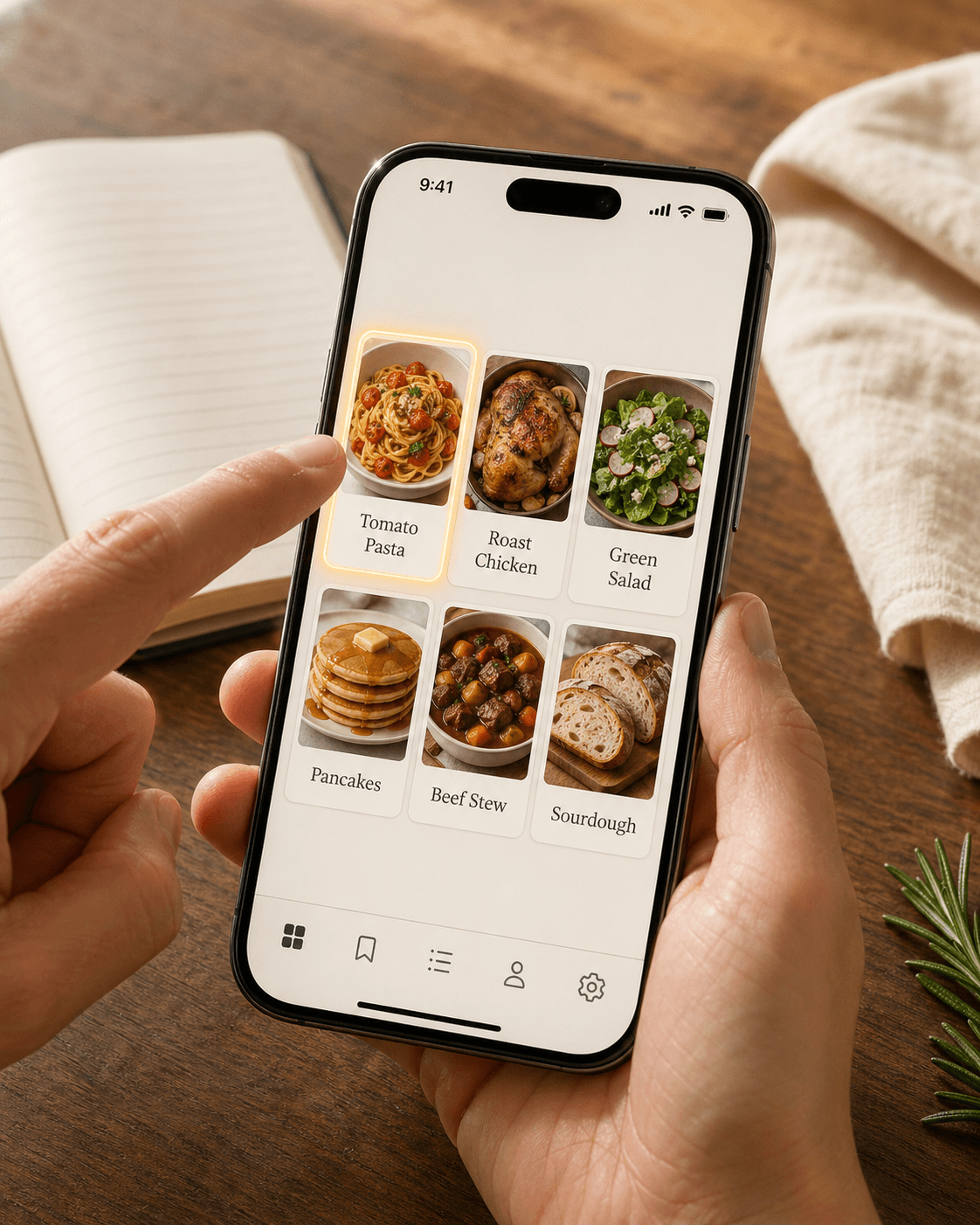
- What will my library look like?
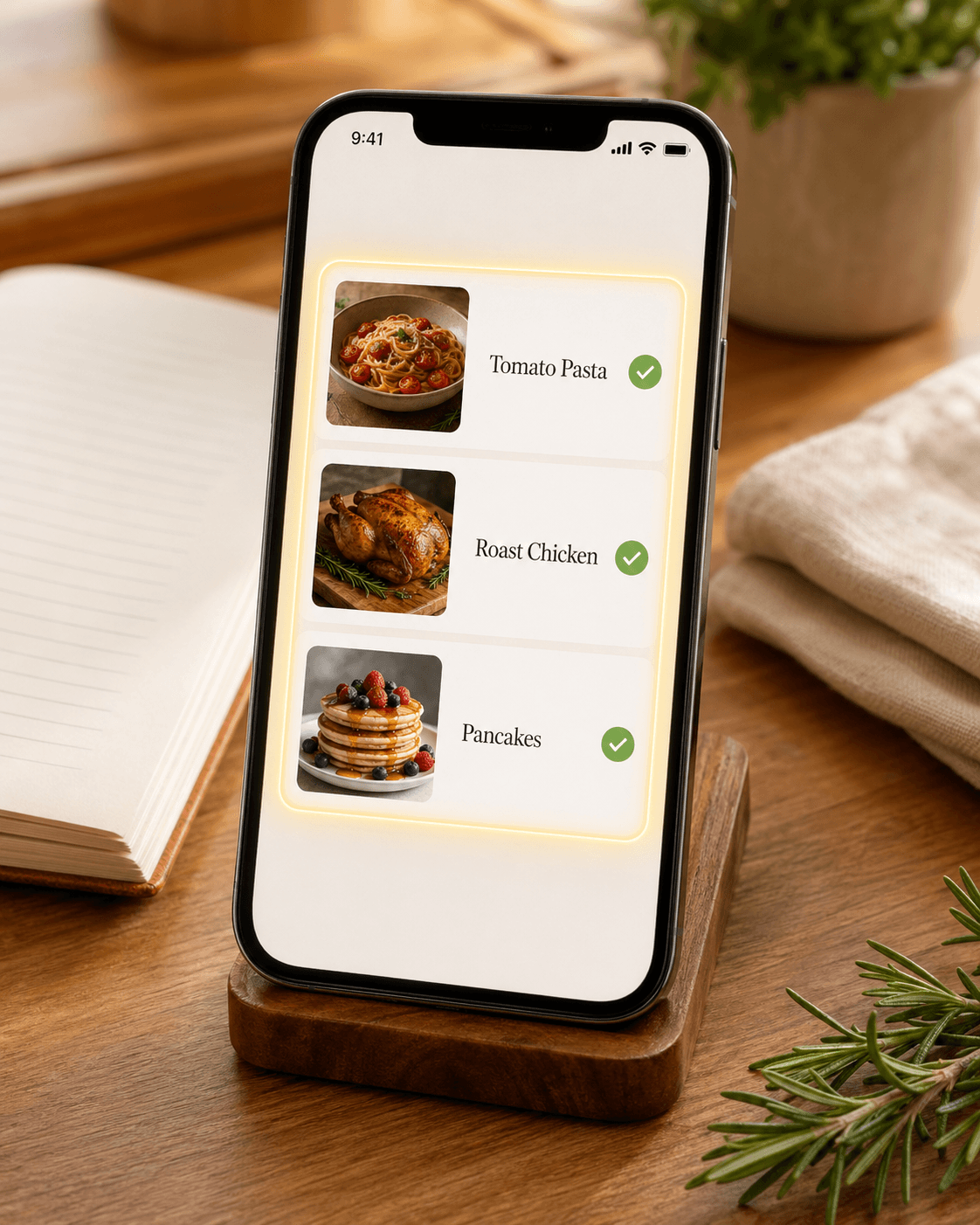
- A grid of saved recipes, each with its own thumbnail. Tap one to open the full recipe. Same idea as AnyList's recipe collection — different look and feel.
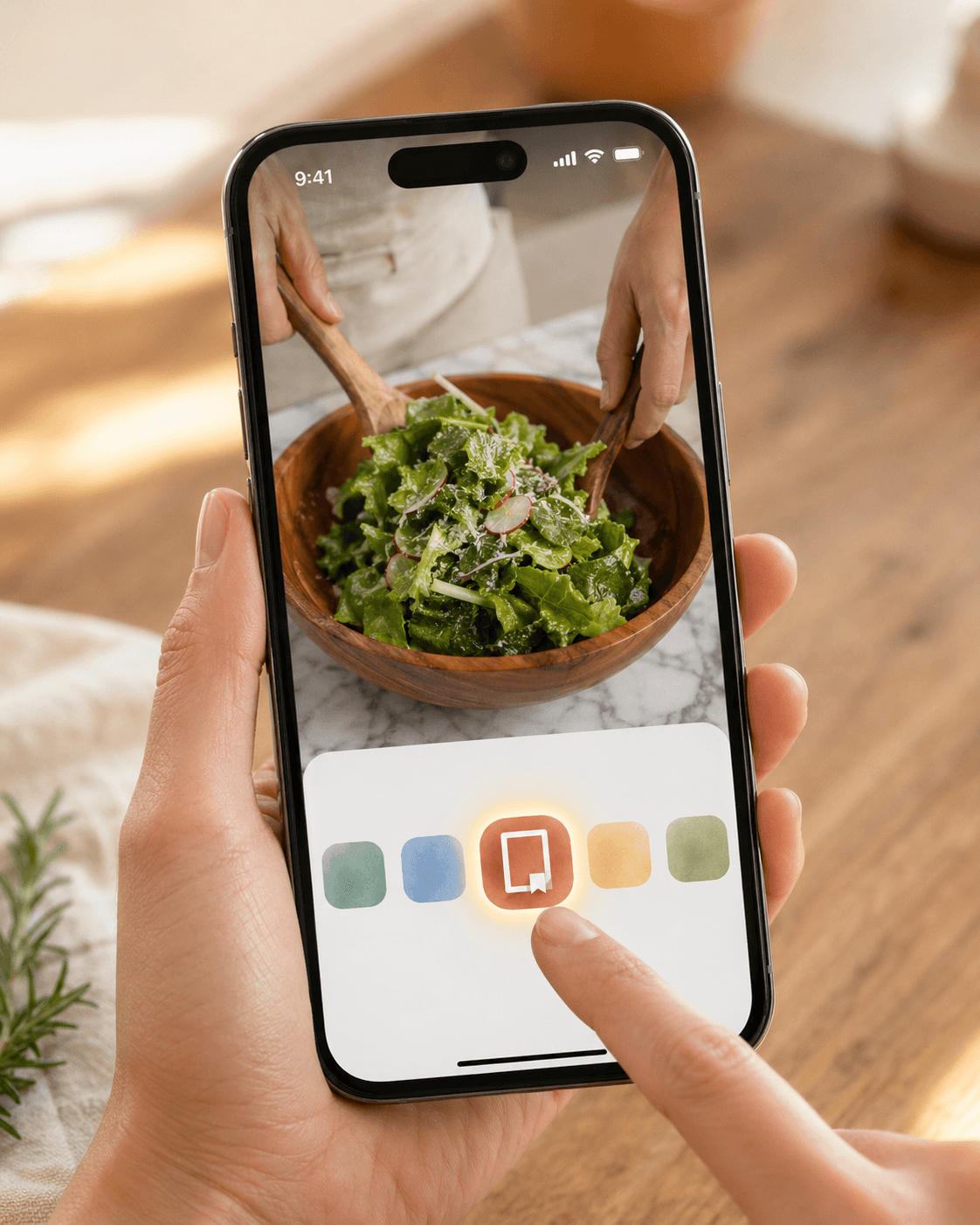
- Can I save recipes from TikTok, Reels, or YouTube?
- Yes. Open any cooking video, tap Share, pick Recipes — we’ll extract the recipe from the caption (and the video audio when needed). AnyList only imports from regular food-blog websites — and in 2026 reviews, even those have become unreliable, with Pinterest a common failure point and users falling back to manual copy/paste. We have working guides for TikTok, Instagram, YouTube, and everything else.
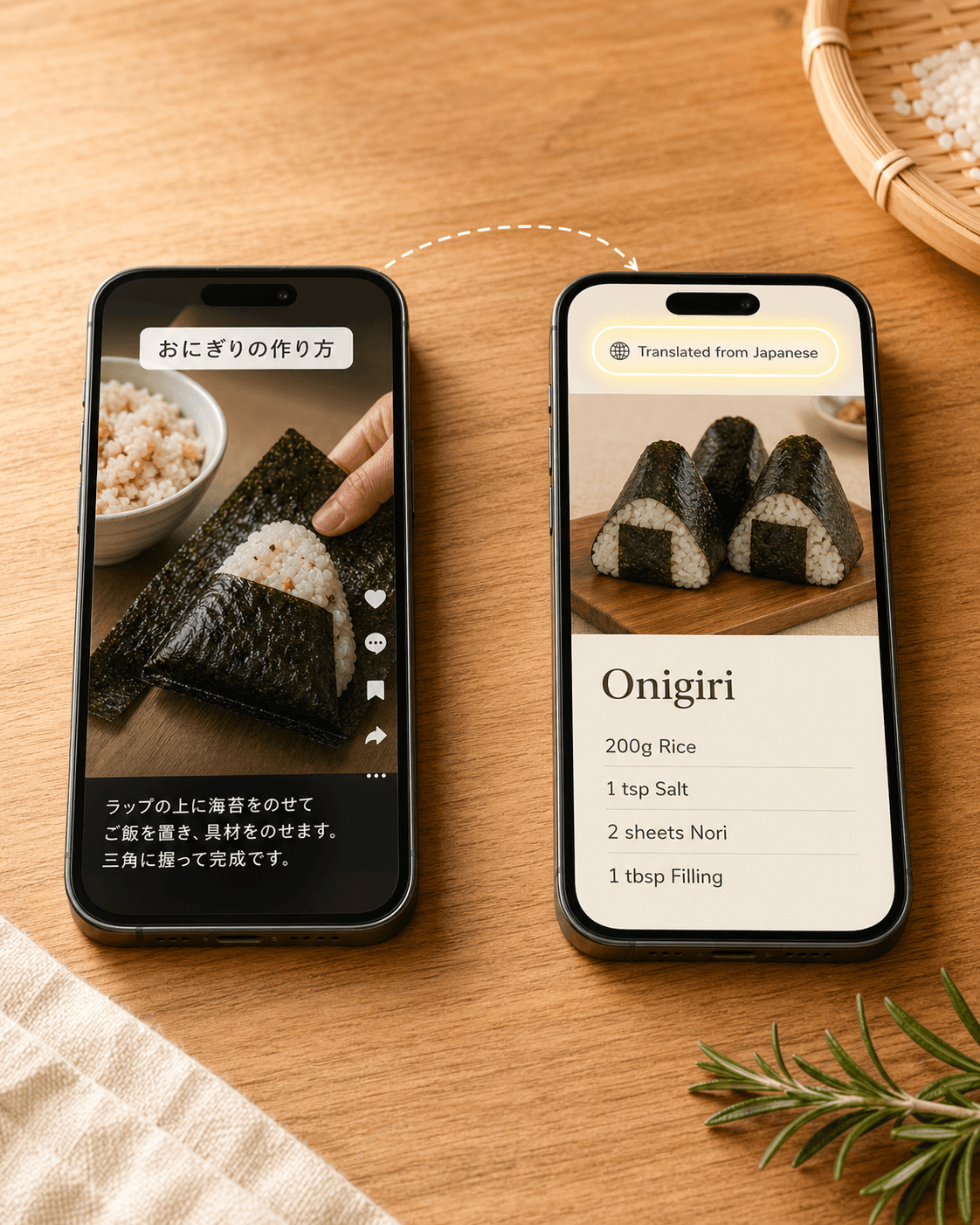
- What about recipes in Japanese, Italian, or any non-English language?
- They work — we translate the caption, the spoken audio, or the website body into English during import. Save a Japanese ramen TikTok, an Italian food blog, a Spanish reel — all land in your library in English. We keep the original source URL too, so you can flip back to the source any time. AnyList only handles English-language sites. Recipes in any language →
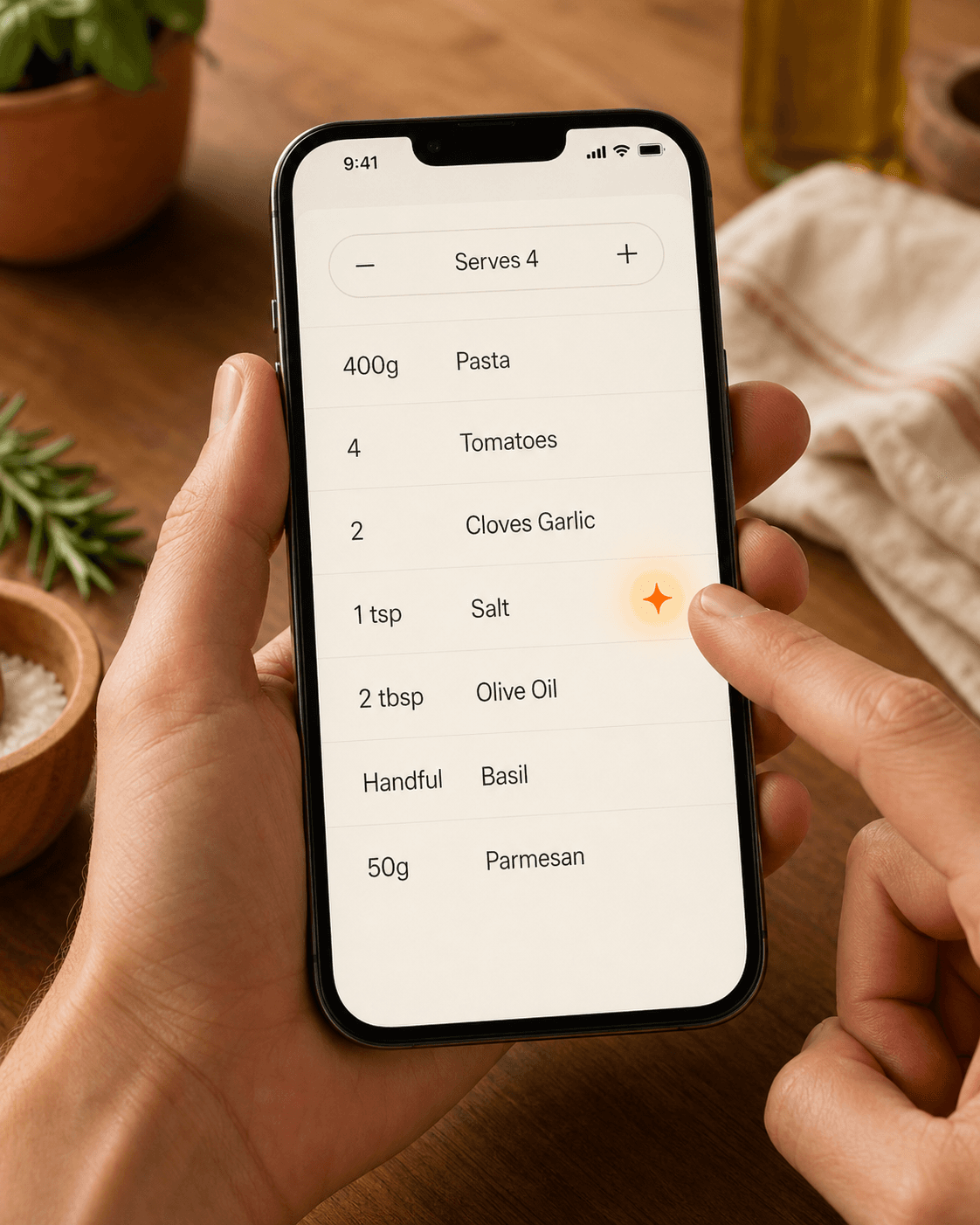
- We cook for different group sizes — will scaling actually work?
- Yes. Pick any number of servings and the quantities recalculate cleanly. Seasonings, leavening, and extracts (salt, baking powder, vanilla) hold their amount — doubling those ruins dishes. A chef hat marks the rows that stay put. AnyList scales everything linearly, including the spices. How scaling works →
- What does my grocery list look like when I plan a whole week?
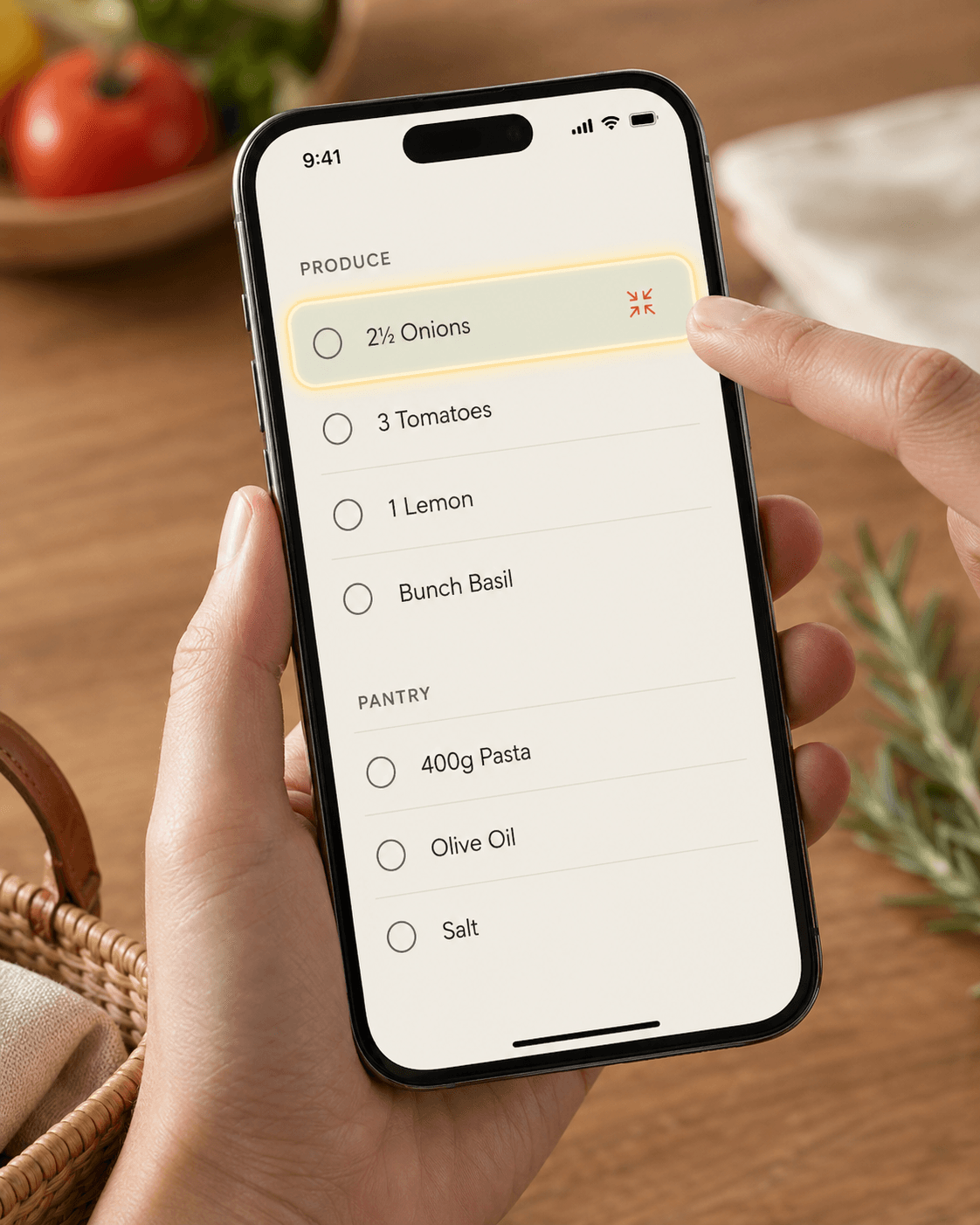
- Clean. Ingredients from different recipes merge — three recipes calling for ½, 1, and 1 onion become a single “2½ Onions” line. Aisle-sorted automatically. AnyList sorts by aisle but doesn’t combine quantities across recipes, so you’ll see onions on three lines. More on the grocery list →
- How do my partner and I share recipes?
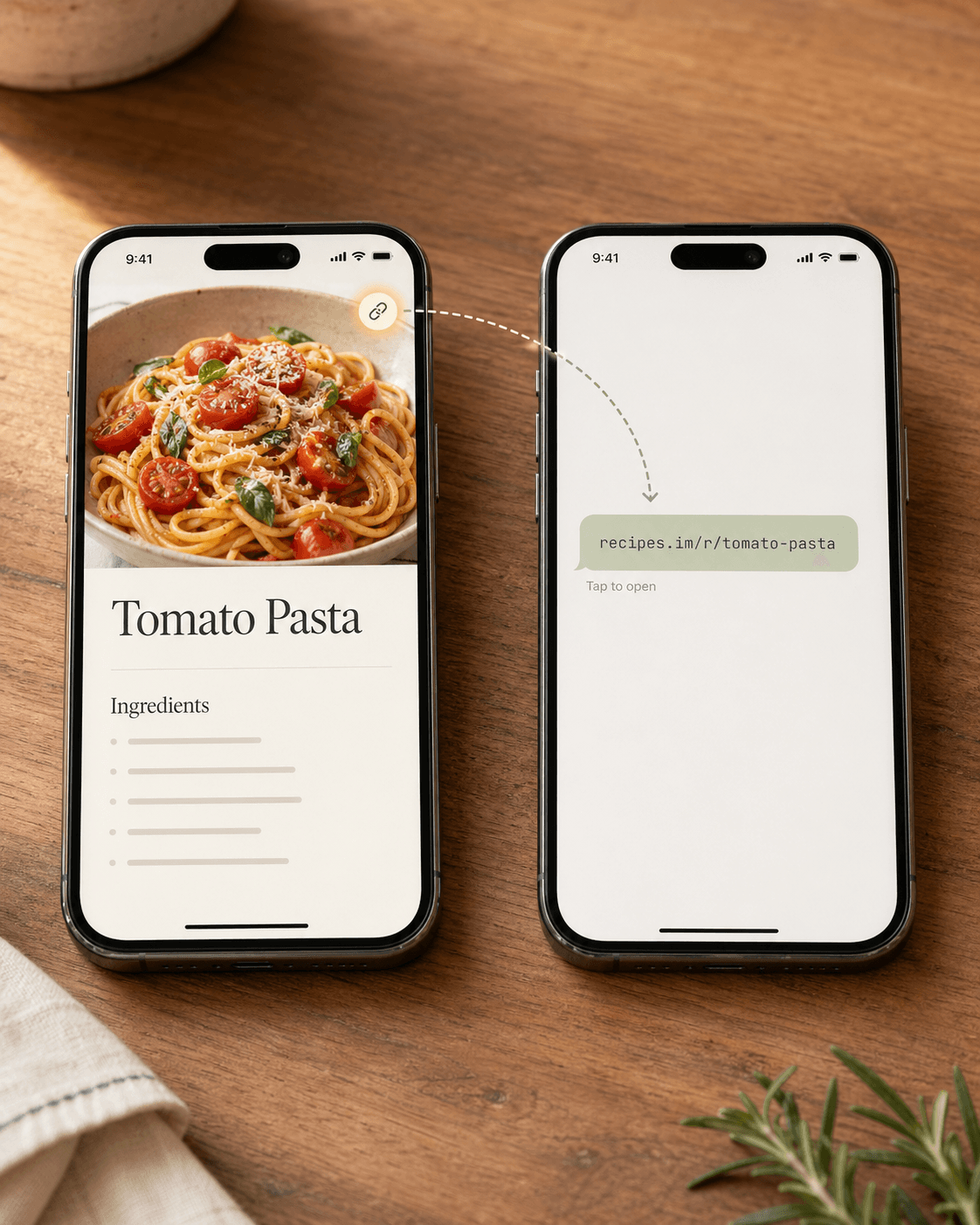
- Same shared-household model AnyList has — invite your partner with a code, one shared library, one shared grocery list, one meal plan. Setting up your household →. For one-off shares outside the household — texting a recipe to a friend or your mom — every recipe also has a public link anyone can tap to save into their own library, no account-linking required. How sharing works →
- Half my recipes are in cups, half in grams. Does it handle both?
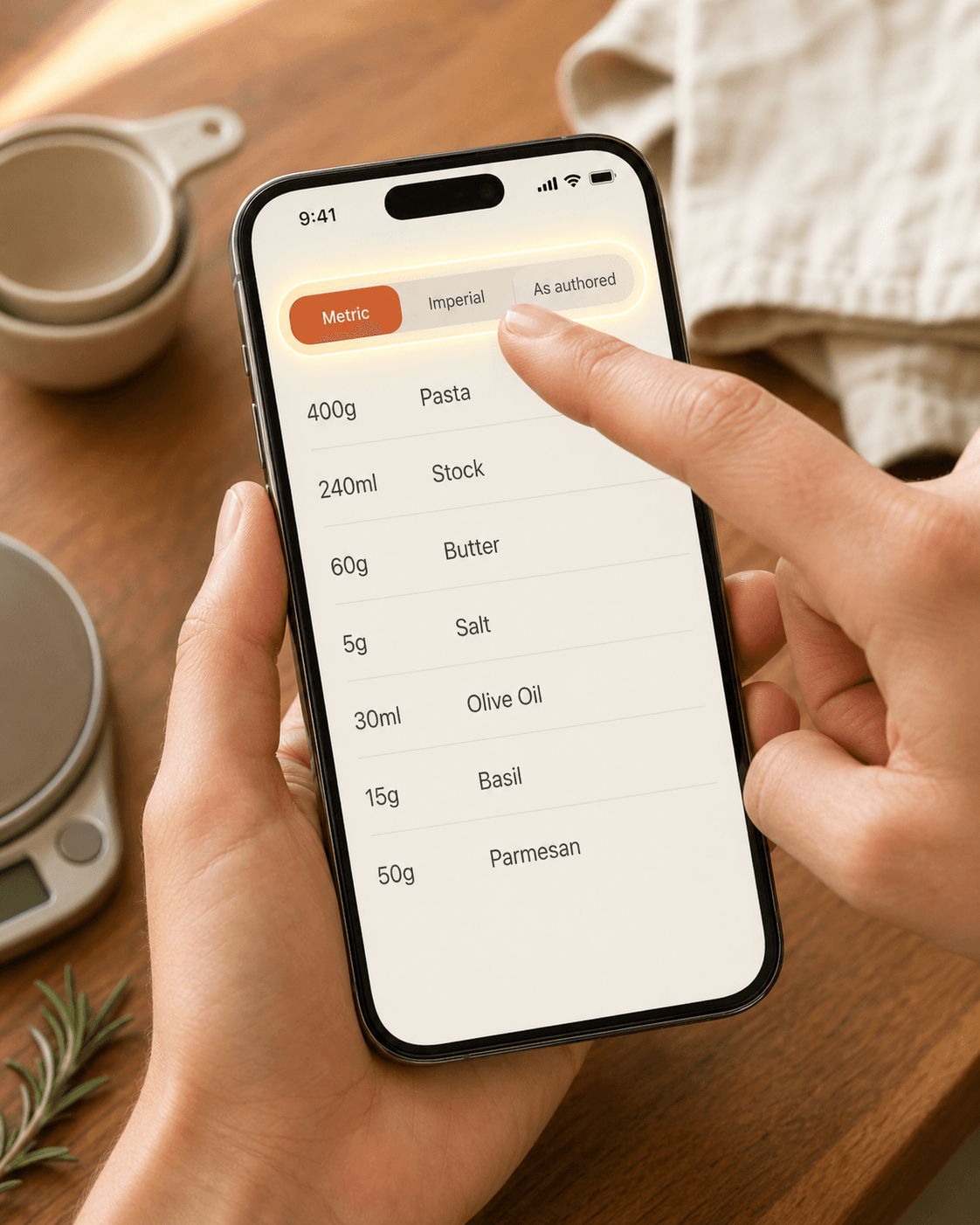
- Yes. Save anything in any unit; one preference toggle flips your whole library between Metric, Imperial, or As-Authored. The recipes you saved in cups will read in grams if your partner prefers grams. AnyList shows whatever units the original recipe wrote — no conversion. How units work →
- Does it show calories and macros?
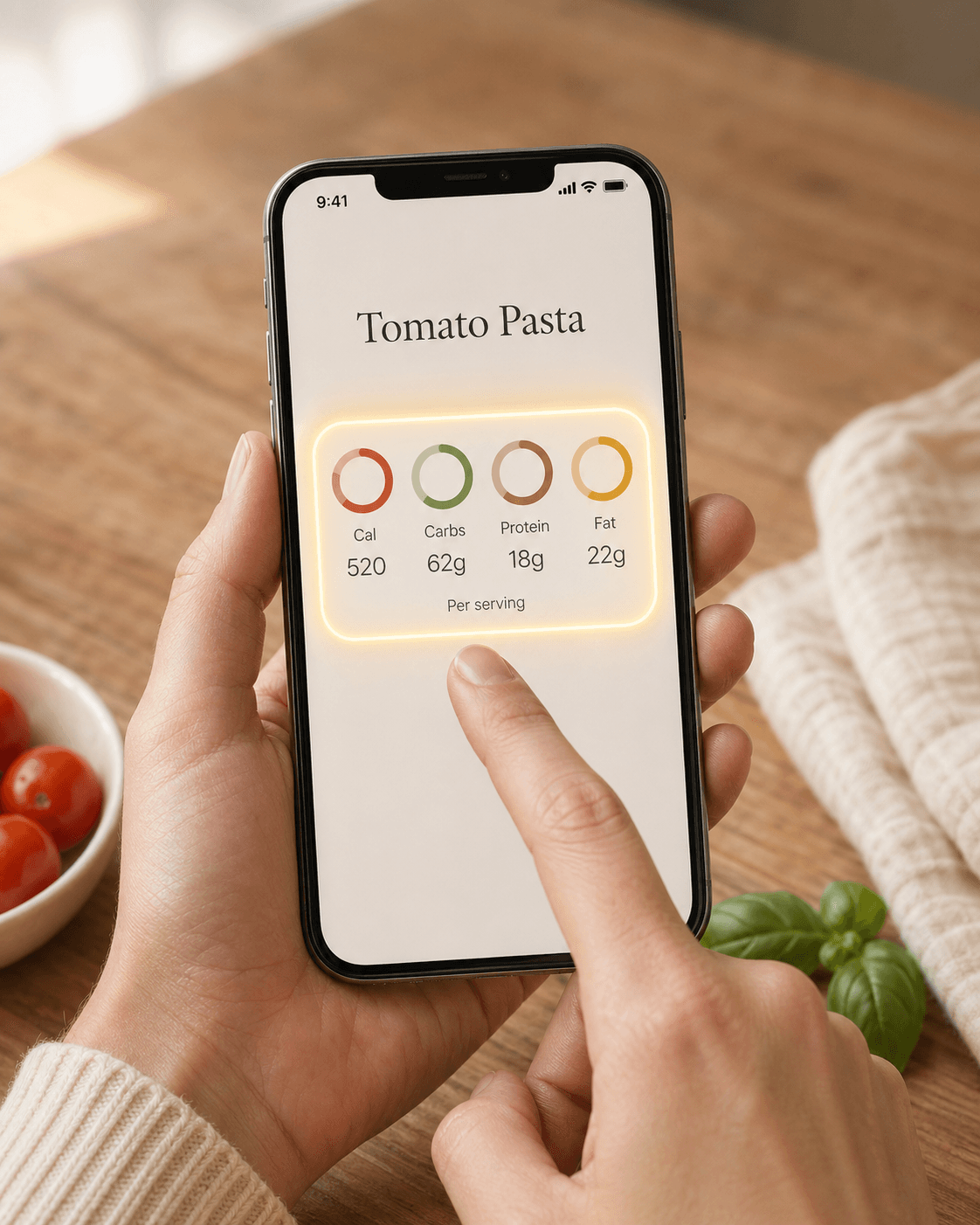
- Yes, automatically — calories, carbs, protein, and fat per serving, computed from the parsed ingredients. No tagging, no manual entry, no separate paid add-on.
- How do I move a few recipes across to test?
- In AnyList, tap a recipe → Send Recipe → Mail. The email contains the recipe text plus the original source URL. Forward it to yourself, then either share the URL to Recipes (cleanest result) or paste the body. Three recipes is enough to feel the difference; your AnyList library doesn’t move. How import works →