Import a recipe from YouTube
Send any YouTube cooking video to recipes.im — full-length episodes, Shorts, or anything in between.
YouTube cooking videos work well because most have closed captions — auto-generated or human-edited. We use the captions plus the description to put together the recipe. Works for full episodes, livestreams, and Shorts. Works in any language — see Recipes in any language.
- 1
Open the cooking video on YouTube
Open the YouTube app on iPhone and tap into the recipe video you want to save.
- 2
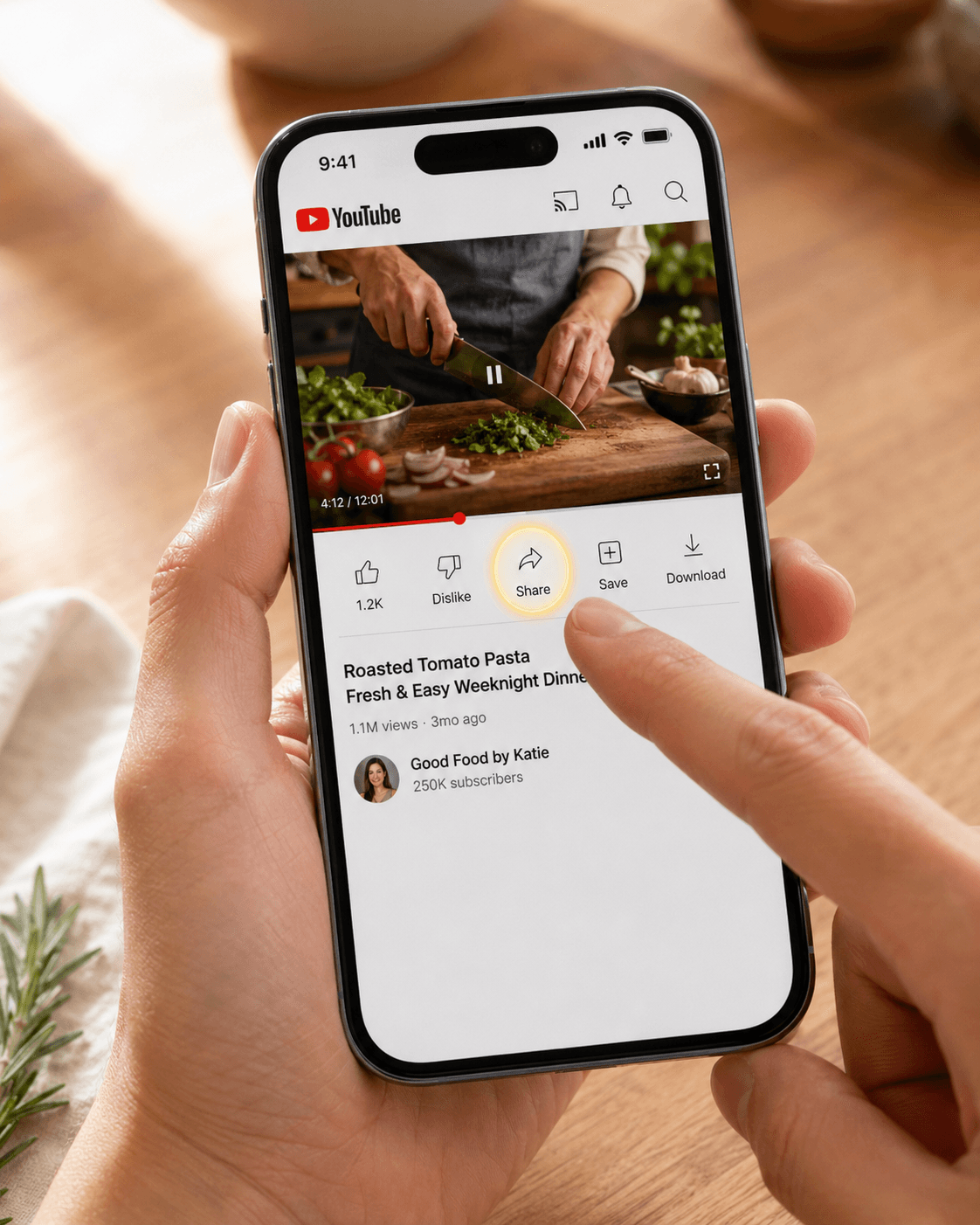
Tap Share
Below the video, tap the Share button (the share-arrow icon).
- 3
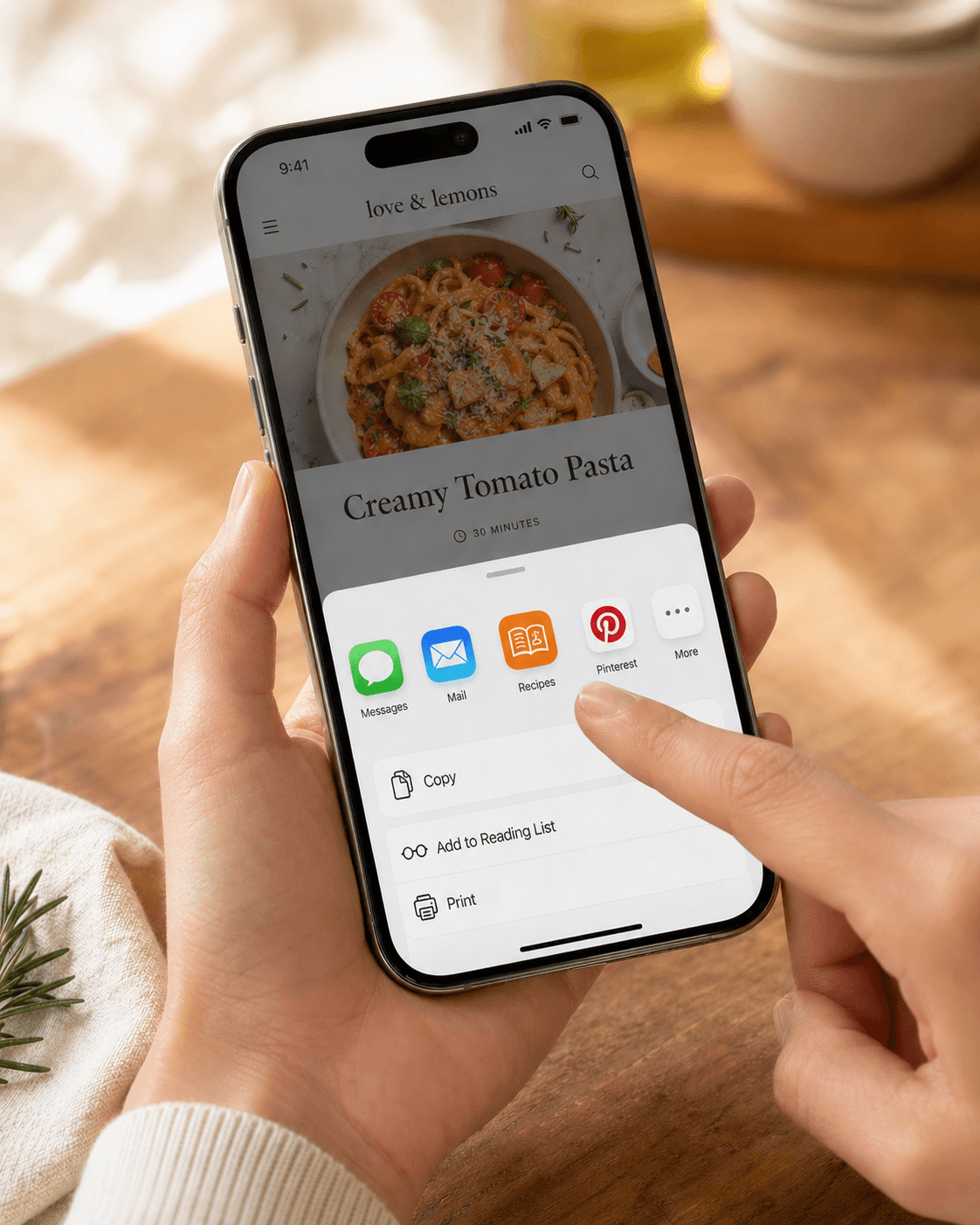
Pick Recipes from the share sheet
Scroll the row of share targets and tap Recipes.
- 4
Wait for the captions to parse
We pull the captions and description, then run them through the recipe extractor. Most YouTube videos take 10-25 seconds.
Troubleshooting
The video had no captions
Auto-captions are usually available within a few hours of upload — if you tried right after the video went live, wait and retry. For very old or unlisted videos with no captions at all, we fall back to the description and any timestamps the creator added.
Long-form video, only some steps came through
30+ minute episodes can have multiple recipes or long preamble. The extractor produces one recipe per import — usually the dish the video spends the most time on. If the cook covers two dishes you want both, you'll need to import the video a second time and edit one of the resulting recipes by hand.
Related guides
Send any Instagram Reel or post to recipes.im. We watch the video and read the caption to put together a clean recipe.
Send any TikTok cooking video to recipes.im. We pull the spoken steps and the caption together.
A short tour of what happens between tapping Share and the recipe landing in your library — and the architectural choice that keeps it cheap to run.
Common problems and fixes — failed imports, missing ingredients, scrambled steps, sync issues.